Tempo
Bar-based windows in sync with the DAW. Each pass restarts with playback or a seek.
See every transient. An oscilloscope with frequency layers and sidechain — at zero latency.
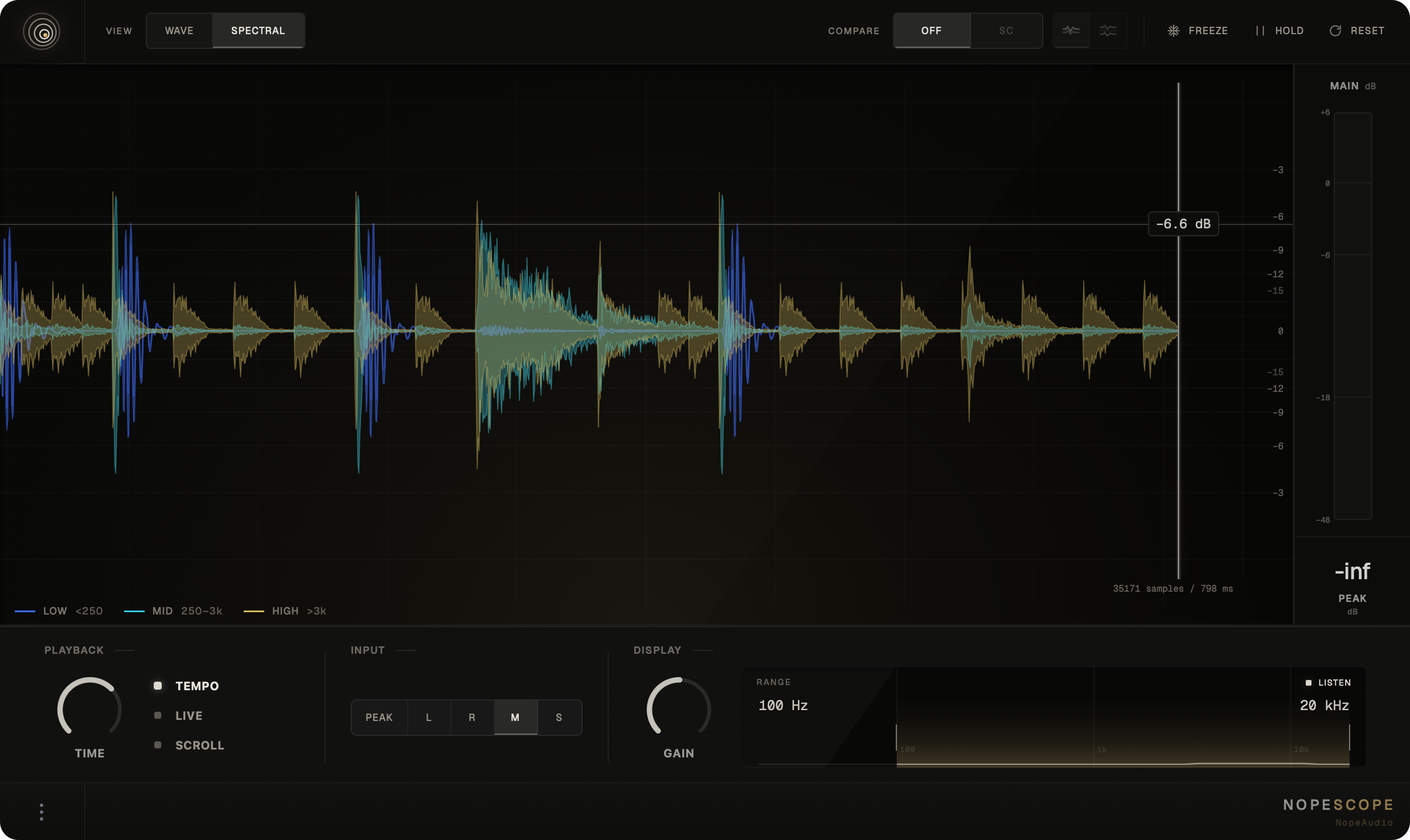
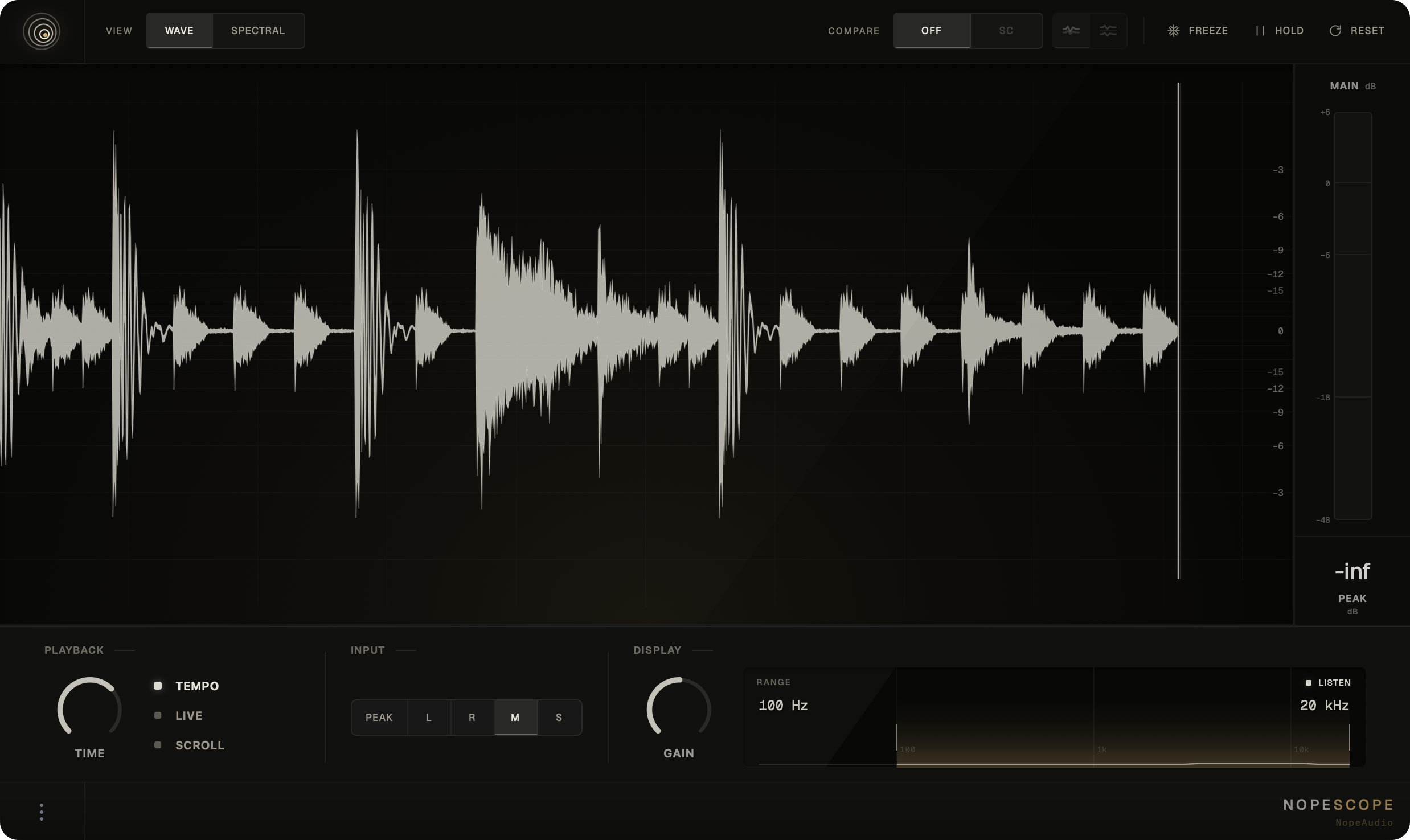
Wave shows the complete waveform. Spectral splits the same signal into low, mid and high bands.
Hide the layers you don’t need to follow a single band.
Route a second signal to the sidechain — a kick, for example — and compare its timing and shape with your main signal.
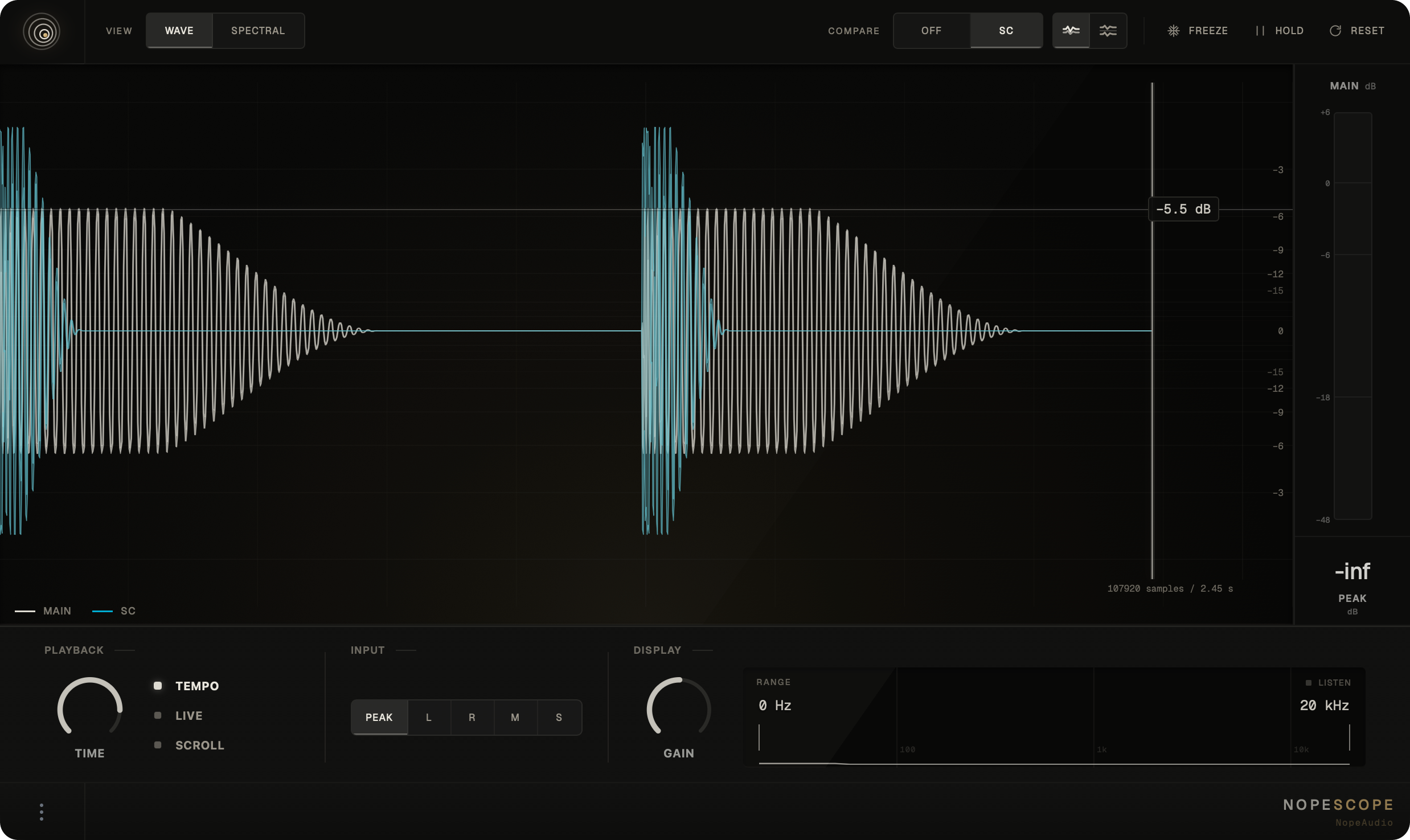
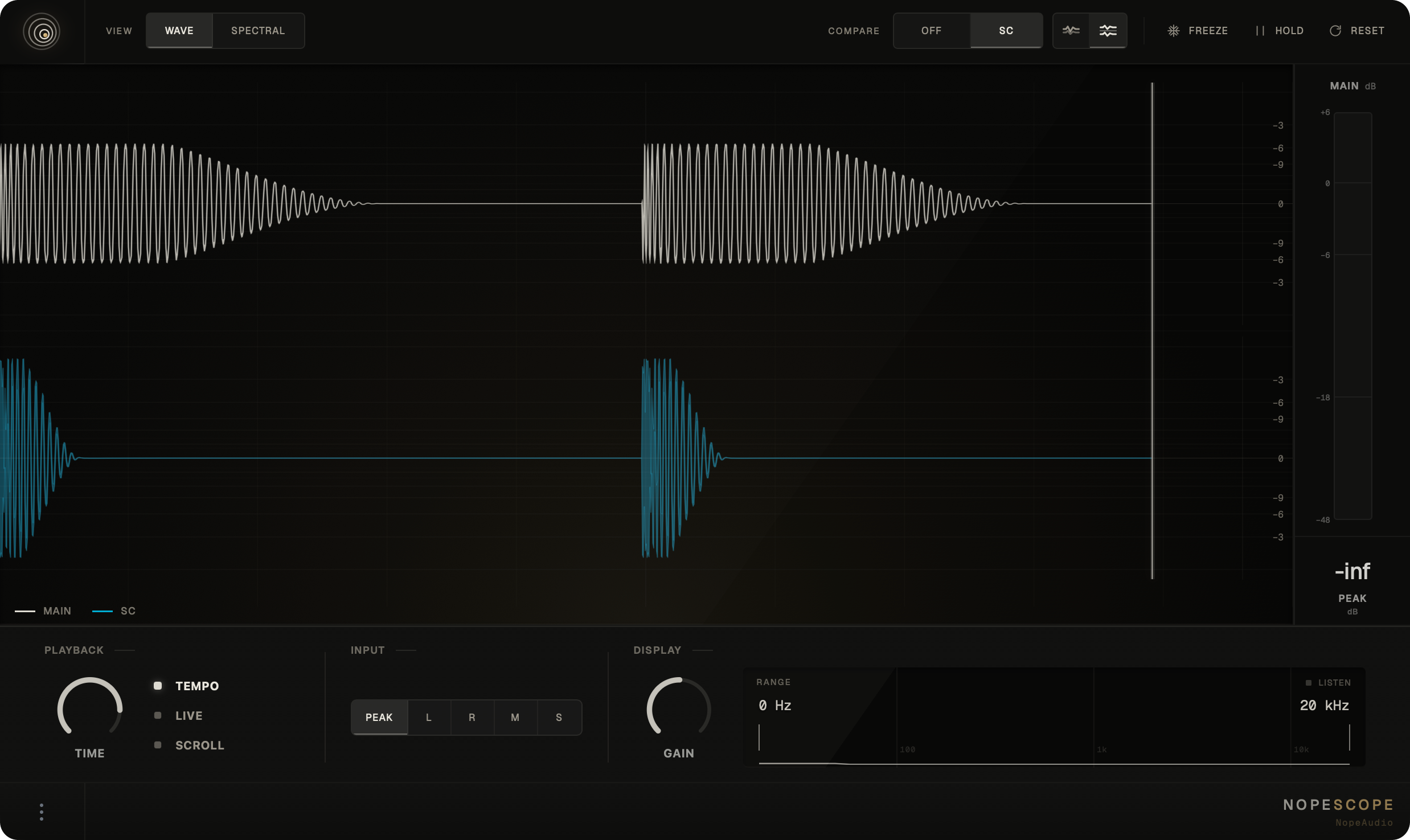
Sidechain comparison is available in Wave mode.
Freeze the graph to study the detail, compare it with the previous pass or start over.
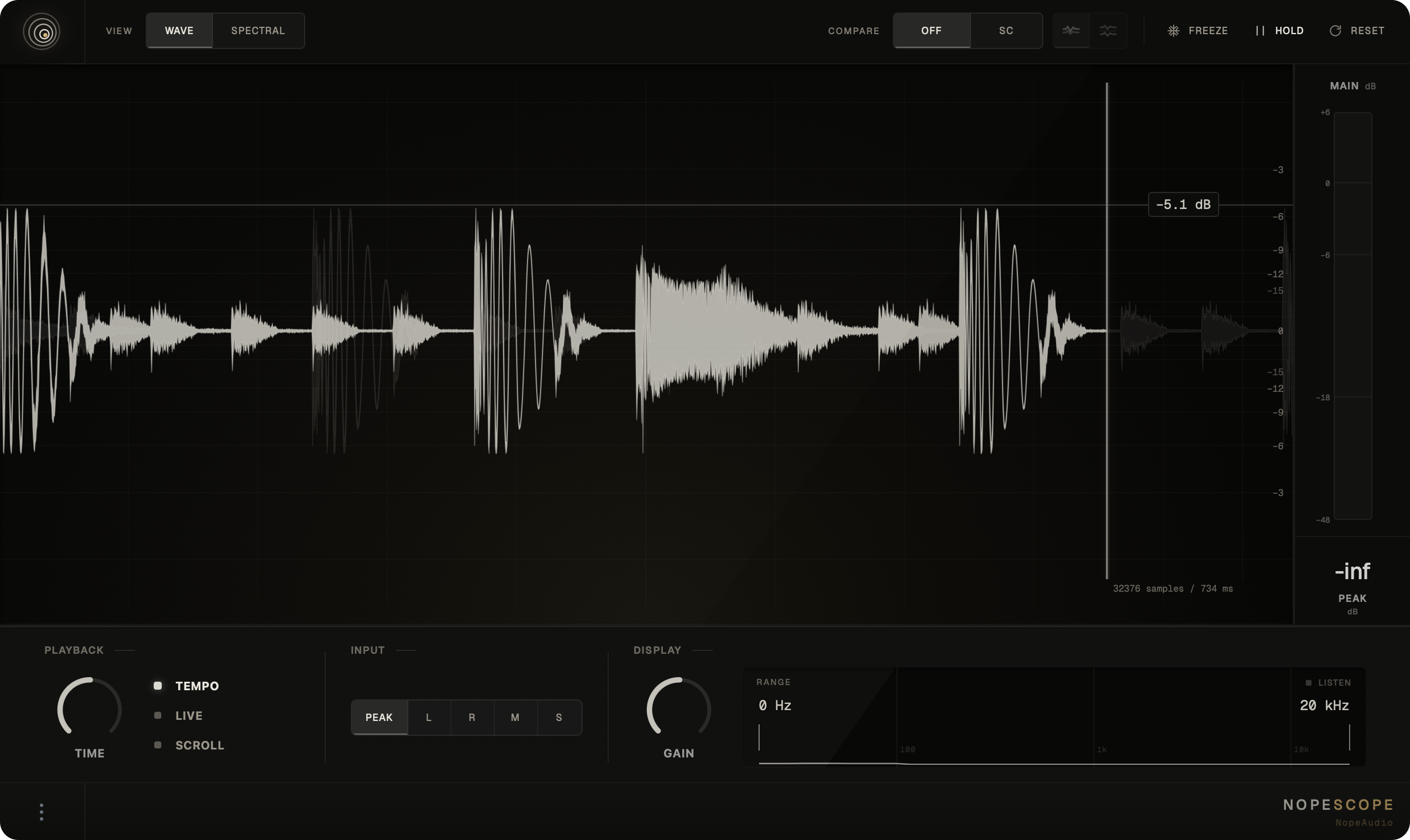
A short window for a single transient. A long one for envelopes, repeats and timing.
Bar-based windows in sync with the DAW. Each pass restarts with playback or a seek.
Capture ignores the transport and keeps running while the DAW is stopped. For live inputs and synths.
History flows continuously across the display instead of redrawing inside a fixed window.
Choose the channel, the scale and the frequency range — and keep only what matters on screen.
Peak follows the louder channel and keeps its polarity. L and R isolate the channels, M shows what they share, S only the stereo difference.
Scale the graph for quiet material or a hot master. Defaults to 0 dB and never changes the output or meter values.
Narrow the visible frequency range and turn on Listen to audition only that region — before you reach for an EQ.
Click the meter to cycle peak, average energy and the gap between them — a quick read on transient contrast.
VST3 and AU on macOS, VST3 on Windows. No iLok, no dongle.
 Ableton Live
 FL Studio
 Logic Pro
 Cubase / Nuendo
 Fender Studio Pro
 REAPER
 Bitwig Studio
Also works in other VST3 and AU hosts · Minimum screen 1280 × 800
No trial period and no locked features.
NopeScope is free — no trial period and no limitations. Download the installer for your system directly from this page.
No. NopeScope does not process audio or add latency. The one exception is band listening: while it is on, you hear only the selected frequency range.
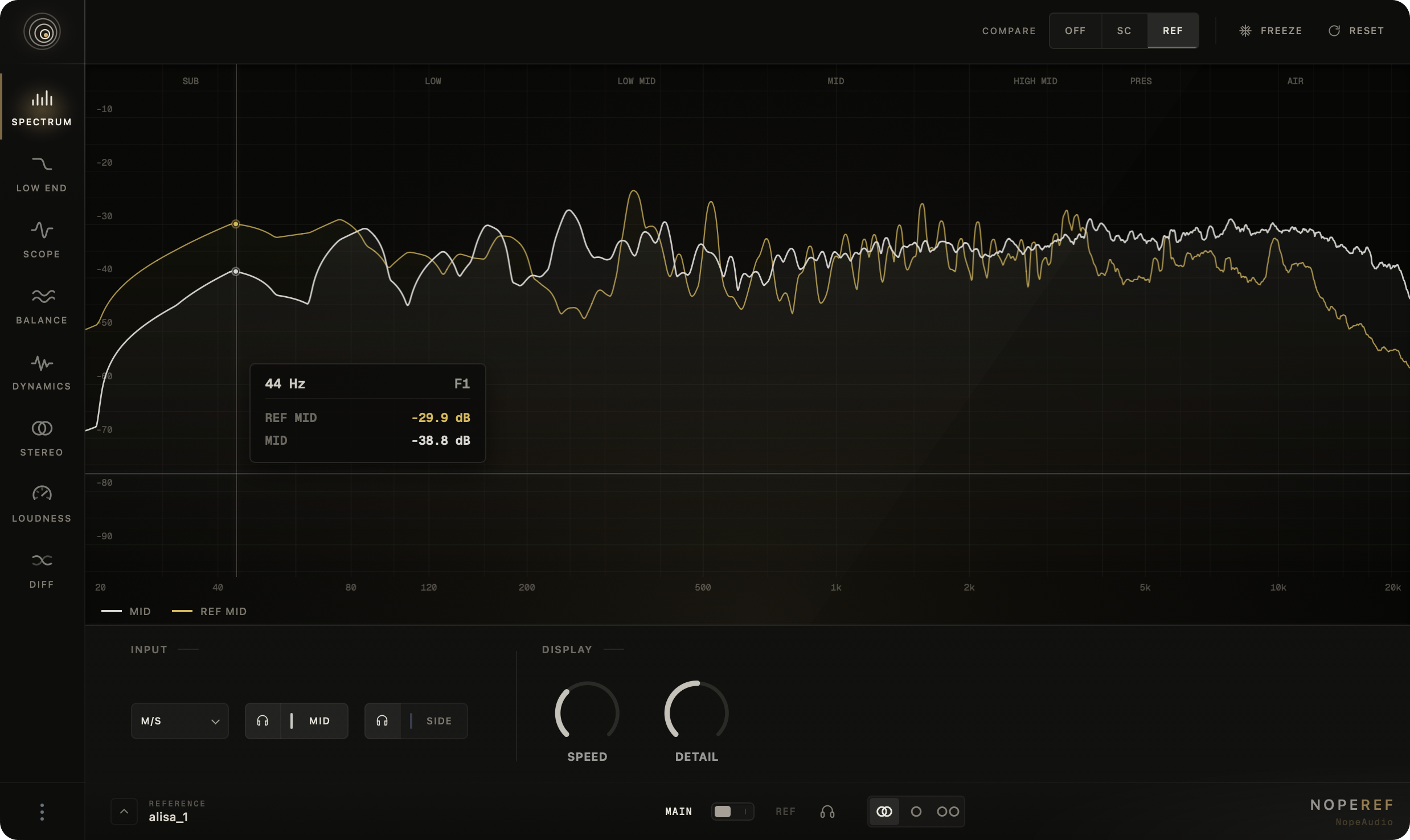
It is the same scope as a standalone free plug-in. In NopeRef it also compares your signal against a reference and works alongside the reference library and seven other analyzers.
Route a send to the NopeScope sidechain input in your DAW, then turn on sidechain comparison in the plug-in. Comparison is available in Wave mode. Routing varies by DAW — see the documentation.
No. Spectral is still a scope: it splits the signal into low, mid and high bands and draws each as its own waveform.