NopeRef is a reference analyzer for making deliberate mix decisions. It keeps the signal you analyze, the signal you compare with and the signal you hear separate, so changing a graph never changes your monitoring unexpectedly.
Important: NopeRef is an analysis and monitoring plug-in. It does not process, correct or improve the mix by itself.
Getting started
- Insert NopeRef on the master or mix bus you want to analyze.
- Start playback. NopeRef begins analyzing the Main input.
- Add a reference track and select a section that is comparable with the part of your mix you are evaluating.
- Use A Main / B Ref to compare the two sources by ear.
- Choose REF in a view's Compare control when you also want the selected reference represented in that analyzer.
- Use Match after both Main and the selected reference section have enough measured material. It applies a static gain to the reference for a fairer listening comparison.
A difference is not automatically a problem, and a reference is not automatically the right target. Use NopeRef to locate and verify differences, then decide whether they serve the mix.
Installation
macOS
Run the NopeRef installer, then reopen your DAW. NopeRef is available as VST3 and Audio Units. If it does not appear, run the DAW's plug-in rescan.
Windows
Run the 64-bit installer, then reopen your DAW. NopeRef is available as VST3. If it does not appear, confirm that the DAW scans the standard VST3 location and run a rescan.
Trial and activation
Open Settings → License inside NopeRef.
To start the trial, choose Start 3-day trial. Starting the trial requires an internet connection, but no account or payment details. Once issued, the signed trial remains available offline until it expires.
To activate a purchase:
- Copy the personal NopeRef license key from your NopeAudio account or license email.
- Paste it into Settings → License.
- Choose Activate while connected to the internet.
A personal license can be active on up to three computers. A successful activation remains available offline. Before removing NopeRef from an accessible computer, use Deactivate this device to free its activation slot; deactivation requires an internet connection.
Signal and monitoring model
NopeRef separates three concepts:
| Control | Meaning |
|---|---|
| Main | The DAW signal being analyzed. |
| Compare: Off / SC / Ref | The optional analyzer target shown beside Main. SC is the plug-in sidechain; Ref is the selected reference section. |
| A Main / B Ref | The source you hear. It does not swap graph identities or change Compare. |
Changing Compare never changes the monitored audio. Switching between A Main and B Ref never relabels analyzer history. Reference level matching affects reference playback and comparison, not the measurements collected from Main.
The shared Stereo / Mono / Side control changes the monitoring fold. View-specific audition controls can further isolate a band, frequency or channel without changing the underlying analyzer data.
During an offline render, NopeRef always passes Main unchanged.
Interface overview
The navigation opens eight analyzer views in this order:
Spectrum · Low End · Scope · Balance · Dynamics · Stereo · Loudness · Diff
Each view owns the controls relevant to its analysis, such as Compare, Freeze, Hold or Reset. Shared monitoring and reference controls remain available when you switch views. Settings contains display preferences, license status and product information.
NopeRef continues receiving Main, Sidechain and Reference data independently. Only the selected view performs its full visual work, keeping the editor responsive without changing the audio path.
Reference workflow
Add and organize references
Add a reference file to the library, then select either FULL or one of its numbered sections. NopeRef accepts WAV, AIFF, FLAC, MP3, M4A and OGG files. A reference can contain up to six saved loop sections.
Use sections to isolate comparable moments—for example a chorus, verse or drop—instead of comparing unrelated parts of two tracks. The selected section loops while reference playback is active.
Match the listening level
Match compares the integrated loudness measured from Main with the selected reference section and applies a static gain to the reference. Main needs at least four seconds of measured material, and the selected reference section must be analyzed first.
Matching removes a common loudness bias from A/B decisions; it does not normalize Main or change the mix. You can also adjust reference gain manually from −48 to +12 dB.
Listen and analyze independently
Use the two reference actions for different questions:
- A Main / B Ref answers “how do these sources sound?”
- Compare: Ref answers “how do their measured properties differ?”
While A/B listening, use the shared Stereo / Mono / Side control to compare the full image, the mono fold or side information alone. The reference stream keeps running when you switch monitoring, so A/B changes do not restart the section or replace Main in the graphs.
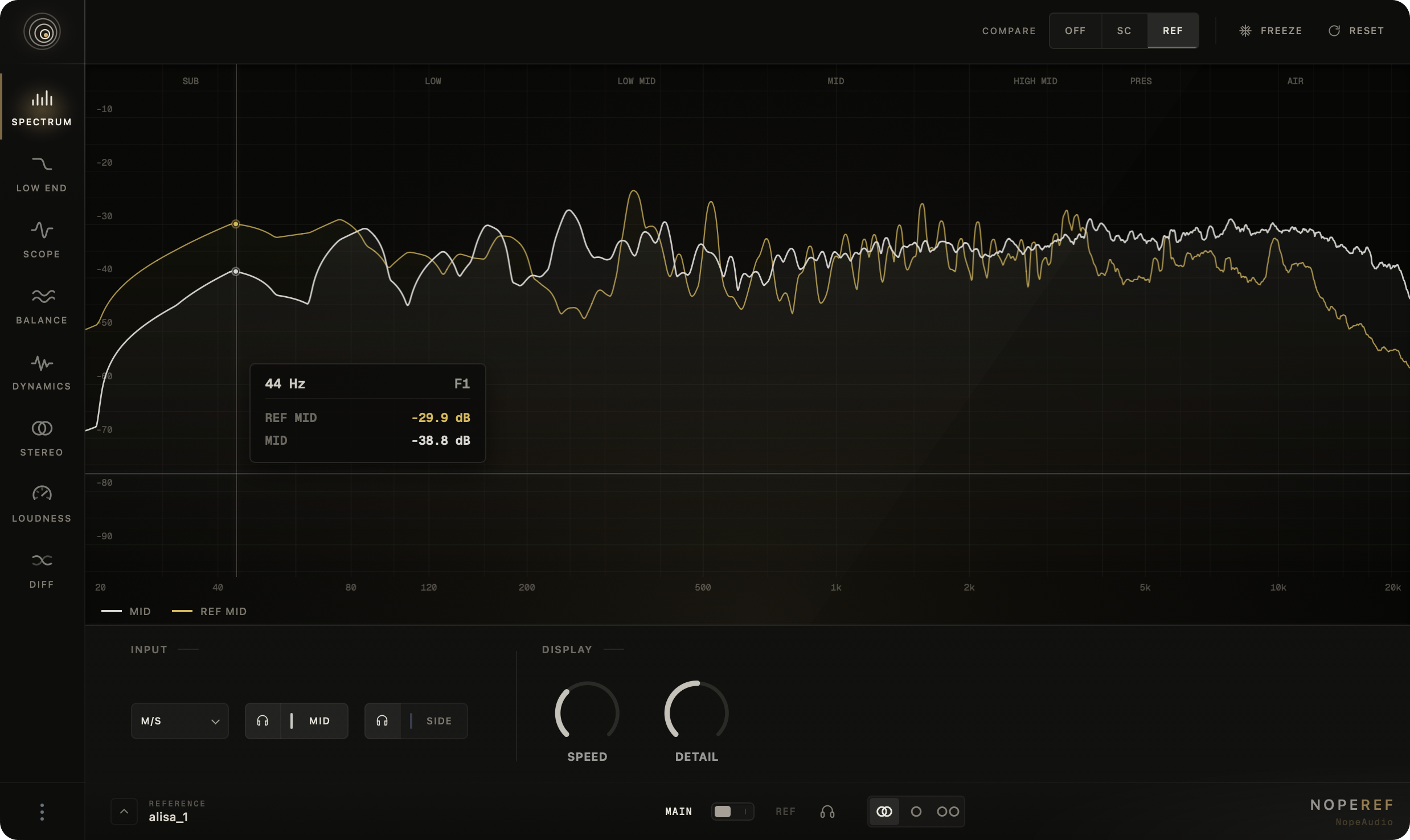
Spectrum
Spectrum is a detailed 20 Hz–20 kHz frequency view for locating resonances, comparing sources and hearing the region behind a curve.
- Compare adds Sidechain or Reference beside Main without changing what you hear.
- Stereo shows one combined-energy trace.
- L/R separates the left and right channels.
- M/S separates mid and side energy.
- In L/R and M/S, each lane can be shown, hidden or auditioned independently.
- Speed changes the visual response; Detail changes the amount of frequency detail.
- Freeze holds the display. Reset clears the accumulated display state.
Move across the graph to inspect frequency, musical note and level. Solo the frequency under the cursor and use the mouse wheel to change its Q (audition bandwidth). The broad frequency-band controls provide a faster way to hear a whole region and can be held momentarily or locked.
Use Spectrum when you need precise frequency context. For the overall tonal shape and target ranges, use Balance instead.
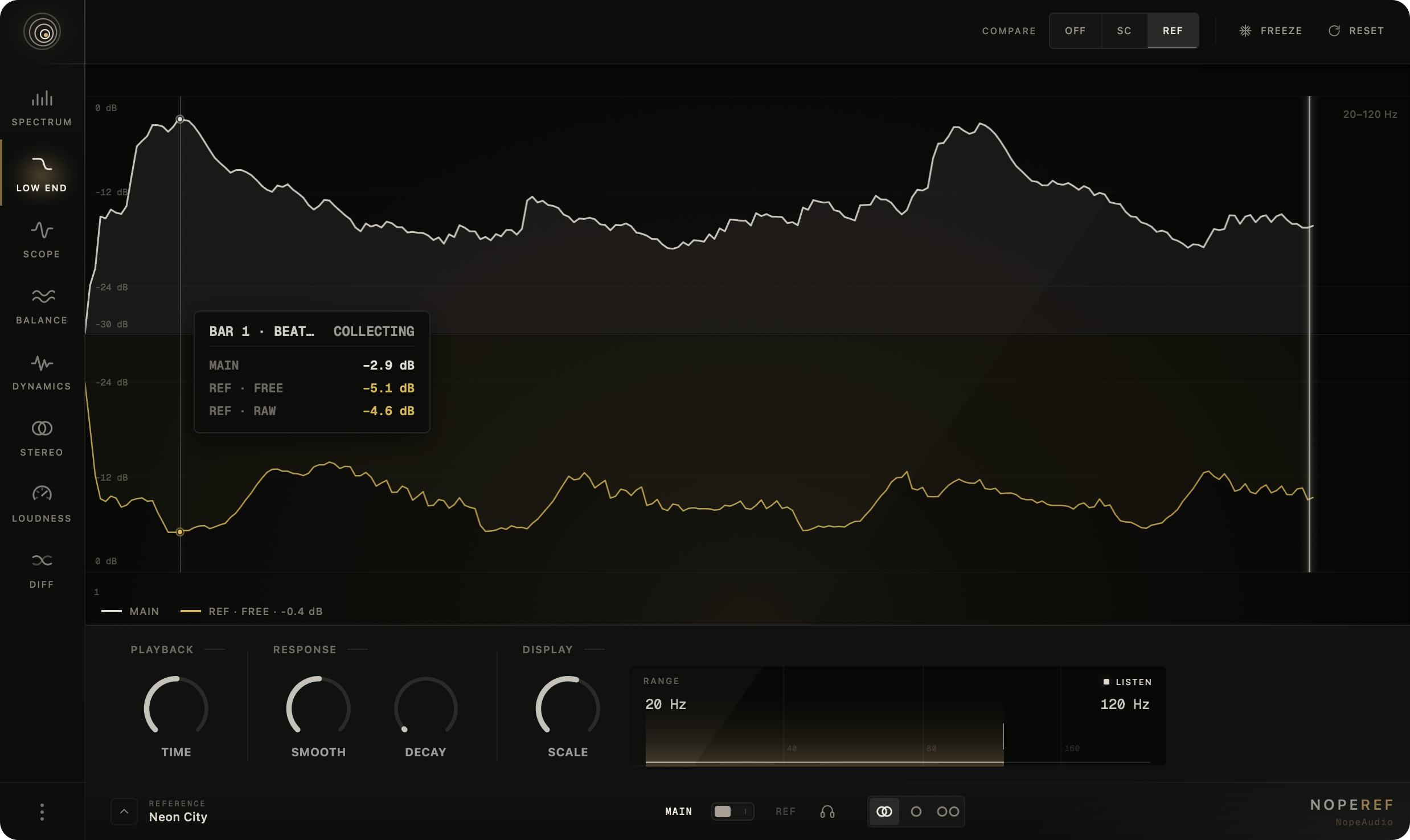
Low End
Low End shows a repeating, tempo-folded low-frequency energy envelope across a musical window. It is designed to reveal attack and decay consistency, the relationship between bass and a sidechain source such as a kick, and the shape of a free-running reference.
- Range sets the upper edge of the analyzed and auditioned band from 40 to 250 Hz; the lower edge is fixed at 20 Hz.
- Time folds the envelope into ¼, ½, 1, 2 or 4 bars and aligns it to the host grid and time signature.
- Without valid host tempo, Low End uses a fixed two-second window and disables the musical Time control.
- SC overlays a display-only, automatically level-matched sidechain trace above the baseline.
- Ref draws the selected reference below the baseline. It is free-running and is not presented as beat- or downbeat-aligned with Main.
- Scale changes the visible level range. Smooth changes release smoothing: lower settings reveal more short-term movement, while higher settings emphasize the broader envelope.
- Decay keeps the previous completed Main pass as a dim trace, making repeated attacks and tails easier to compare.
- Listen auditions the selected low-frequency band from the currently monitored Main or Reference source. It never monitors the sidechain.
- Zoom the graph and pan or scroll through the visible window to inspect attacks and decays more closely.
Low End measures stereo energy without cancelling anti-phase left and right content. It is not a transient detector, phase meter, mono-loss meter or automatic mix-quality score.
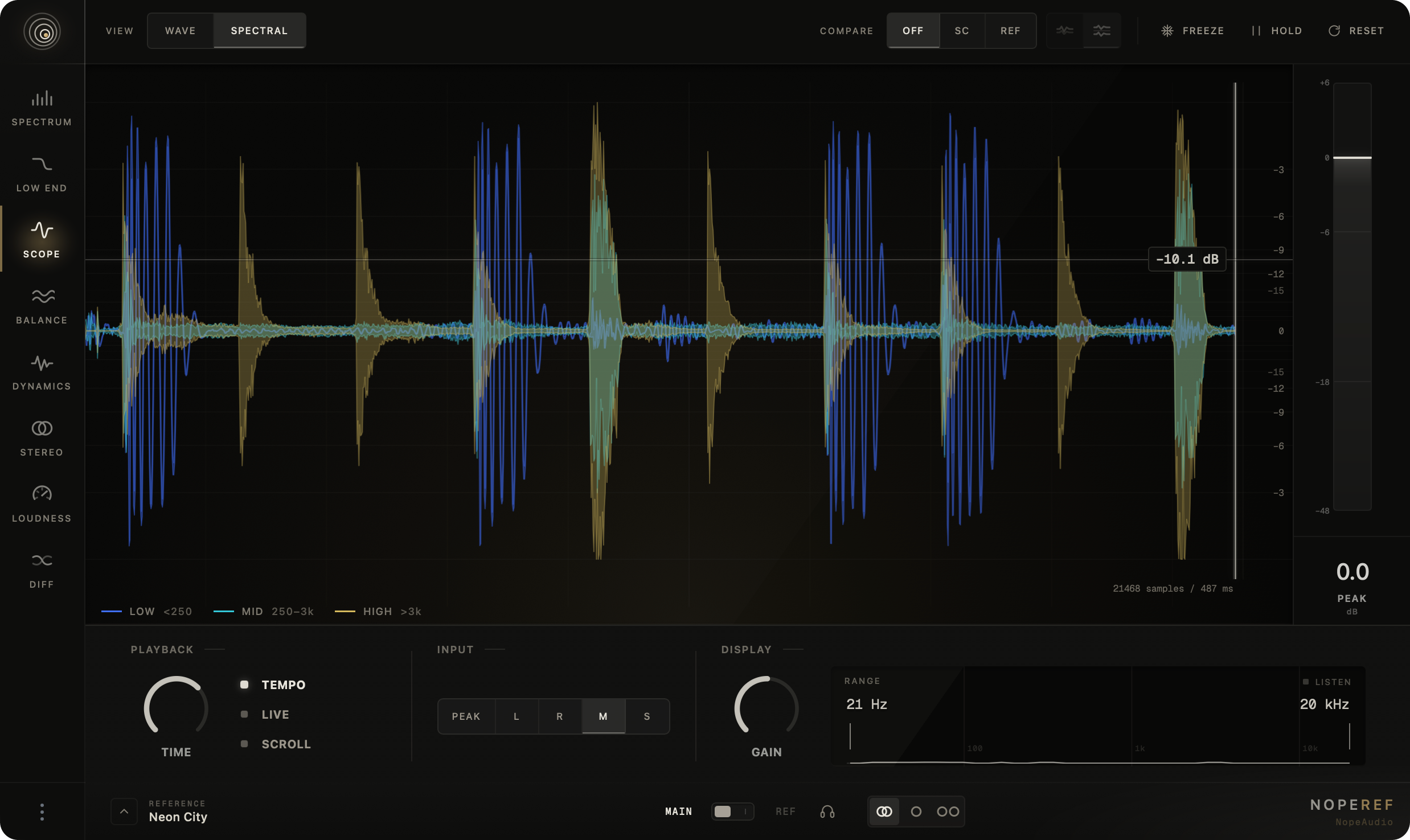
Scope
Scope is a time-domain view for inspecting waveform shape, timing and frequency-layered transients.
Wave
Wave shows the selected input as a waveform. Compare can be Off, Sidechain or Reference. Overlay places Main and the target on the same time axis and gain scale; Split gives them separate lanes without changing their timing relationship.
The input selector offers Peak, L, R, M and S. Peak follows whichever channel has the greater absolute amplitude at each sample while preserving its polarity.
Spectral
Spectral remains a time-domain scope; it is not a spectrogram or FFT display. It separates Main into three waveform layers: Low below 250 Hz, Mid from 250 Hz to 3 kHz and High above 3 kHz. Layers can be shown or hidden, with at least one kept visible. Compare is unavailable in this mode.
Time and playback
- Use tempo-synced windows from 1/16 to 4 bars, or a free window from 1 to 5000 ms.
- Sweep redraws each pass. Scroll moves history continuously.
- With Live off, capture follows DAW playback and starts a new pass after a transport start or seek. With Live on, capture continues independently of the transport state.
- Gain changes only the display, from −24 to +24 dB.
- Range limits the visible and auditioned frequency range; Listen auditions that range.
- Freeze holds the current history. Unfreezing begins a new pass.
- Hold keeps the previous completed pass dimly behind the current one; it is unavailable in Scroll mode.
- Zoom up to 64× on the time axis and pan with the scrollbar. The inspector reports time, level and the peak at a clip marker.
Balance
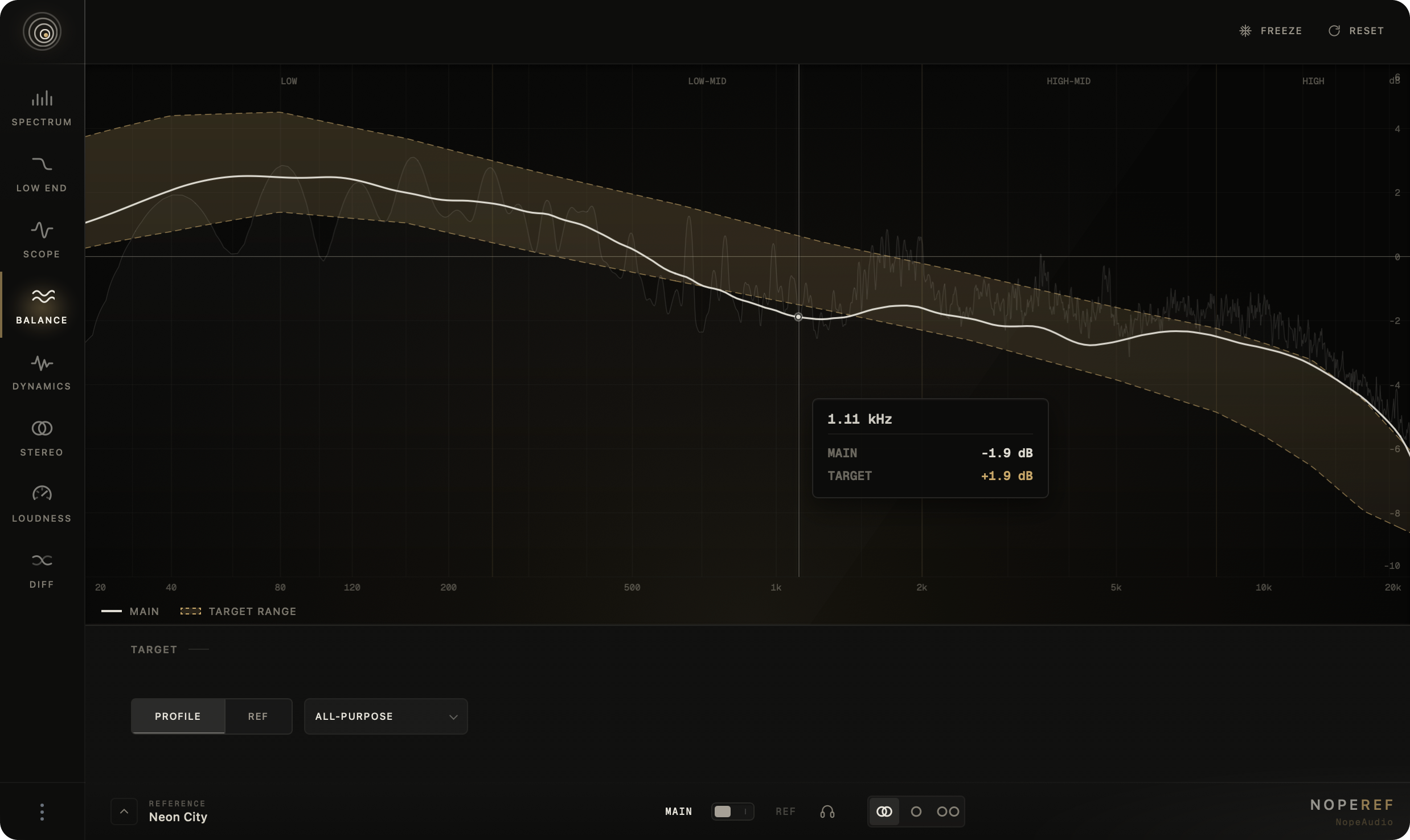
Balance shows whether the broad low, mid and high distribution of the mix sits inside a useful target range. It turns detailed spectrum data into a normalized tonal-shape view for overall balance decisions rather than narrow peak hunting.
Choose one of two target types:
- Profile uses one of four tonal corridors: All-purpose, Mid-focused, Bass-heavy or Bright.
- Ref uses the measured tonal corridor of the selected reference section.
A target is displayed as a range rather than a single ideal curve. The reference corridor reflects variation within the selected section, so a moving reference is not reduced to one arbitrary snapshot.
Move across the graph to see the Main value and whether it falls inside the target at that frequency. When it is outside, the inspector shows the direction and size of the difference. Broad frequency bands can be auditioned before you make a tonal change. Freeze and Reset share the current spectrum analysis state.
Dynamics
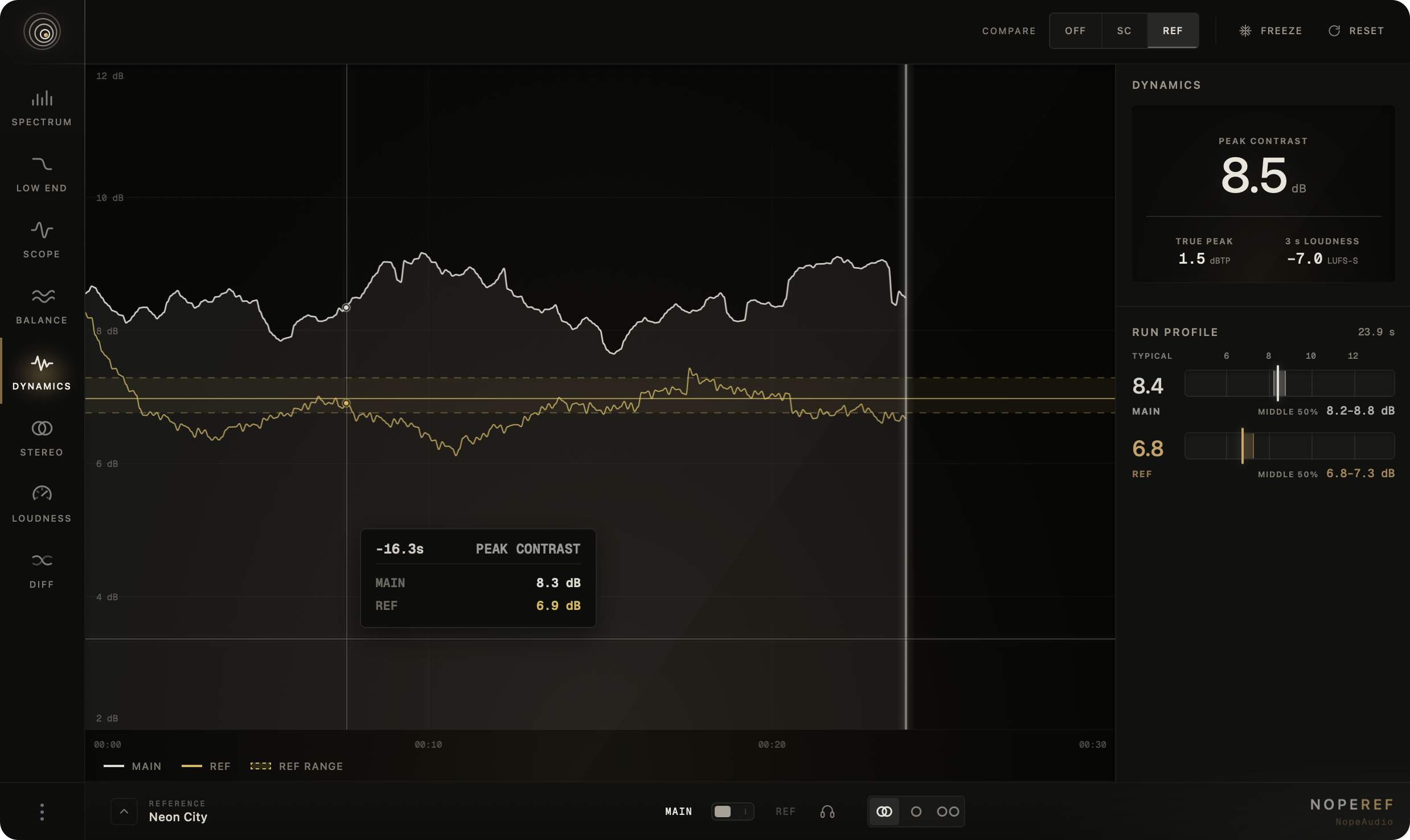
Dynamics tracks Peak Contrast: the maximum true peak within the same rolling three-second window minus short-term loudness. Higher values indicate more separation between the loudness body and the strongest peak; lower values indicate denser material.
The current panel shows Peak Contrast, True Peak and three-second loudness. The graph presents a 30-second history, with Main and Sidechain aligned on the same timeline. Pan or zoom the history to inspect retained material.
A reference is not forced onto a false synchronized timeline. NopeRef can show its live rolling trace and the analyzed profile of the selected reference section. Run Profile and Ref Range summarize the typical value and middle 50% of the collected measurements, which is more representative than one instant.
Use Dynamics to compare punch and density across similar passages. Arrangement, genre and intent still matter: a lower or higher value is not inherently better.
Stereo
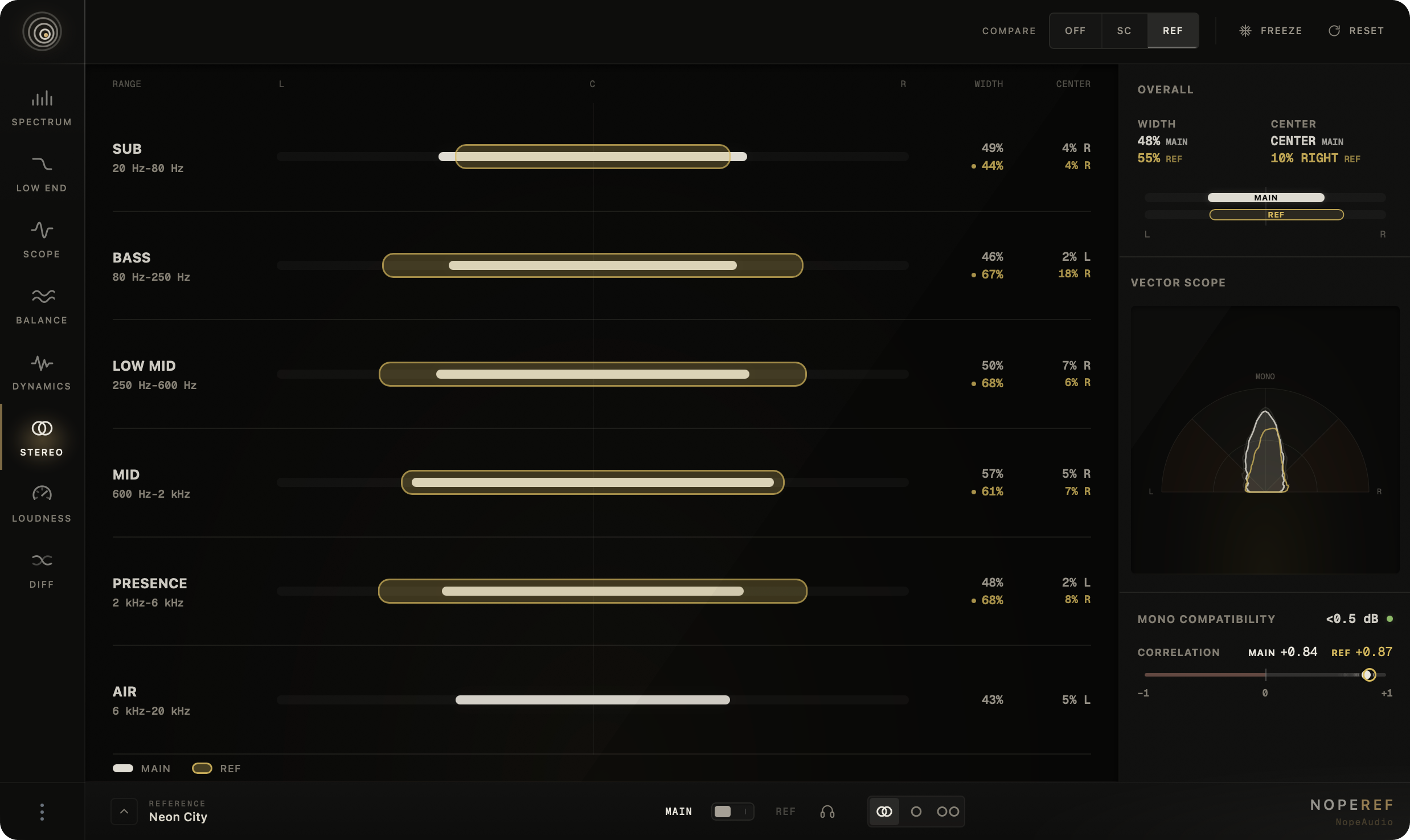
Stereo combines frequency-dependent width and center position with vectorscope, correlation and mono-compatibility information.
The six frequency ranges are Sub (20–80 Hz), Bass (80–250 Hz), Low Mid (250–600 Hz), Mid (600 Hz–2 kHz), Presence (2–6 kHz) and Air (6–20 kHz). Each row shows width and center position for Main and, when enabled, Sidechain or Reference.
- The vectorscope shows mono at the top and left/right extremes at the outer edges. Activity beyond the diagonal guides enters phase-risk territory.
- The correlation meter follows the overall phase relationship from −1 to +1 and includes a short motion trail.
- Mono Compatibility reports the actual level lost when left and right are folded to mono.
- Press a frequency row to audition that band momentarily; double-click to lock or release it.
- Use the shared Stereo / Mono / Side monitor control to verify what the visual indicators suggest.
Width, correlation and mono loss answer related but different questions. Check them together before deciding that an intentionally wide or asymmetric sound needs correction.
Loudness
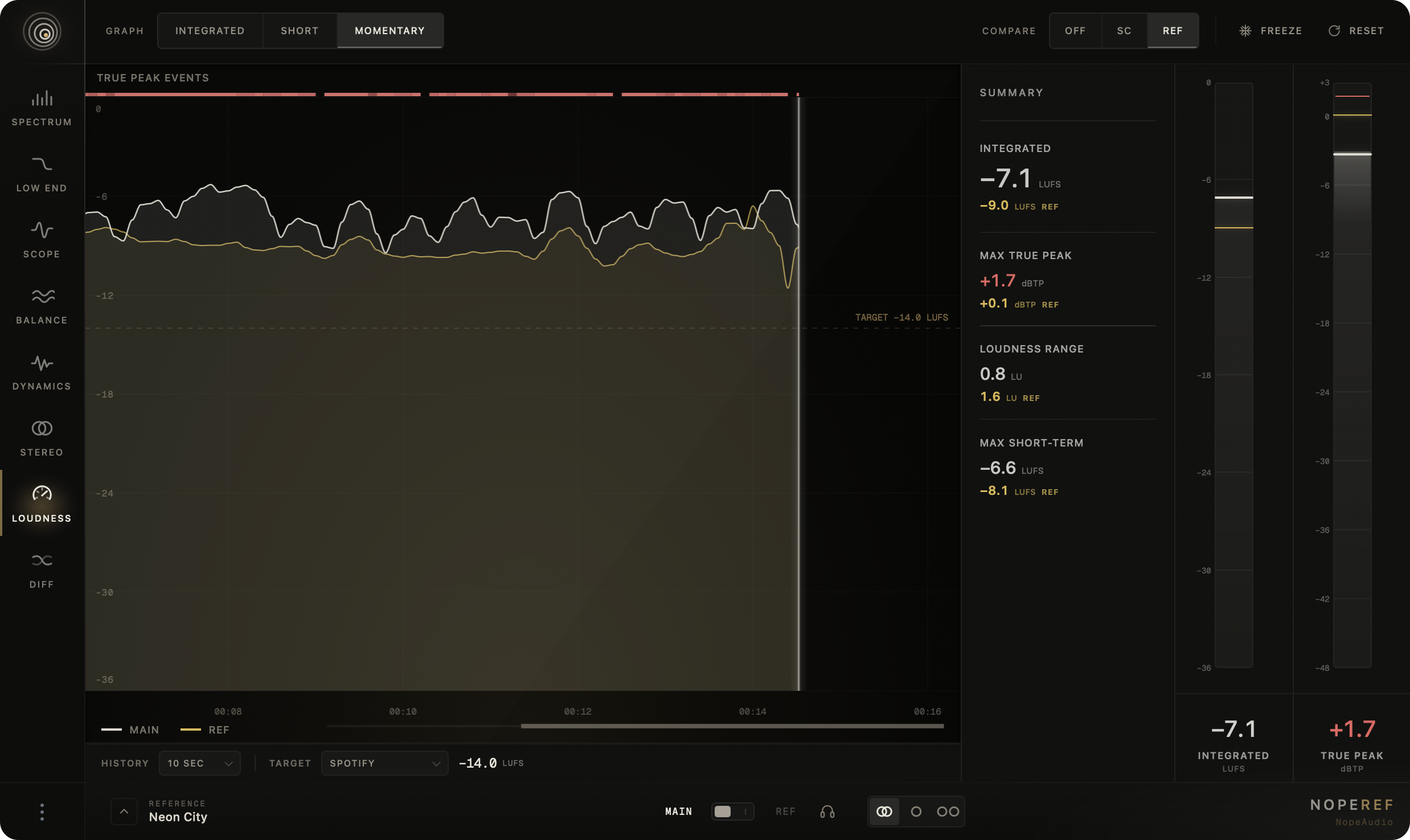
Loudness combines BS.1770/EBU R128-style loudness measurement with true-peak metering and history.
The summary includes Momentary, Short-term and Integrated LUFS, Loudness Range, maximum Short-term loudness, current True Peak, maximum True Peak and separate left/right true peaks.
- Choose Integrated, Short or Momentary for the history graph.
- Set visible history to 10 or 30 seconds, or 1, 2, 5 or 10 minutes.
- Compare Main with Sidechain or Reference while keeping their readings separate.
- Use a custom loudness target or a named reference preset for Spotify, Apple Music, YouTube, EBU R128 or ATSC A/85.
- True-peak events above −1 dBTP are marked in history.
- Freeze holds the display. Reset starts a new measurement run.
The named targets are convenient reference lines, not guarantees of platform normalization, acceptance or playback level. Delivery requirements can change and should be checked with the destination.
Diff
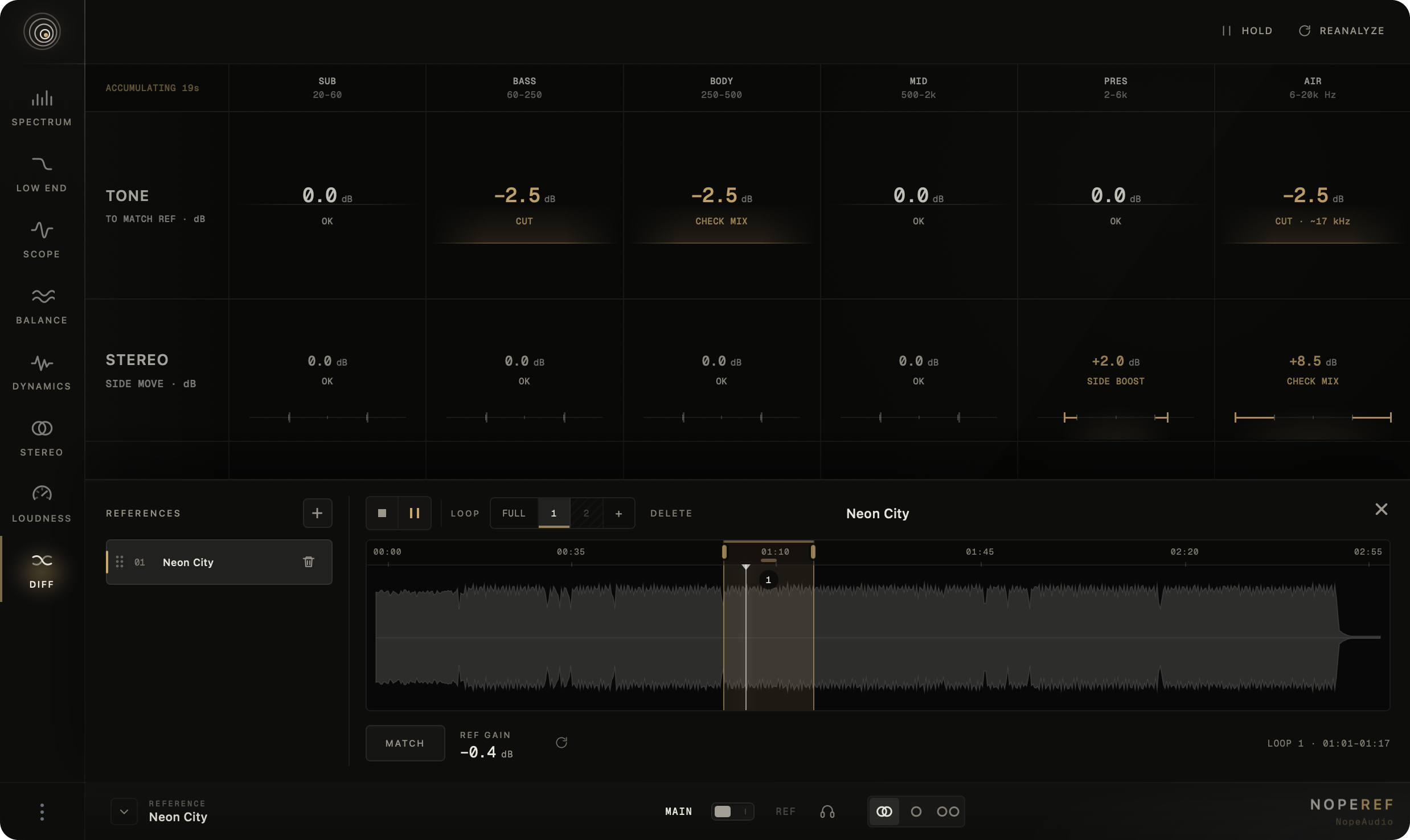
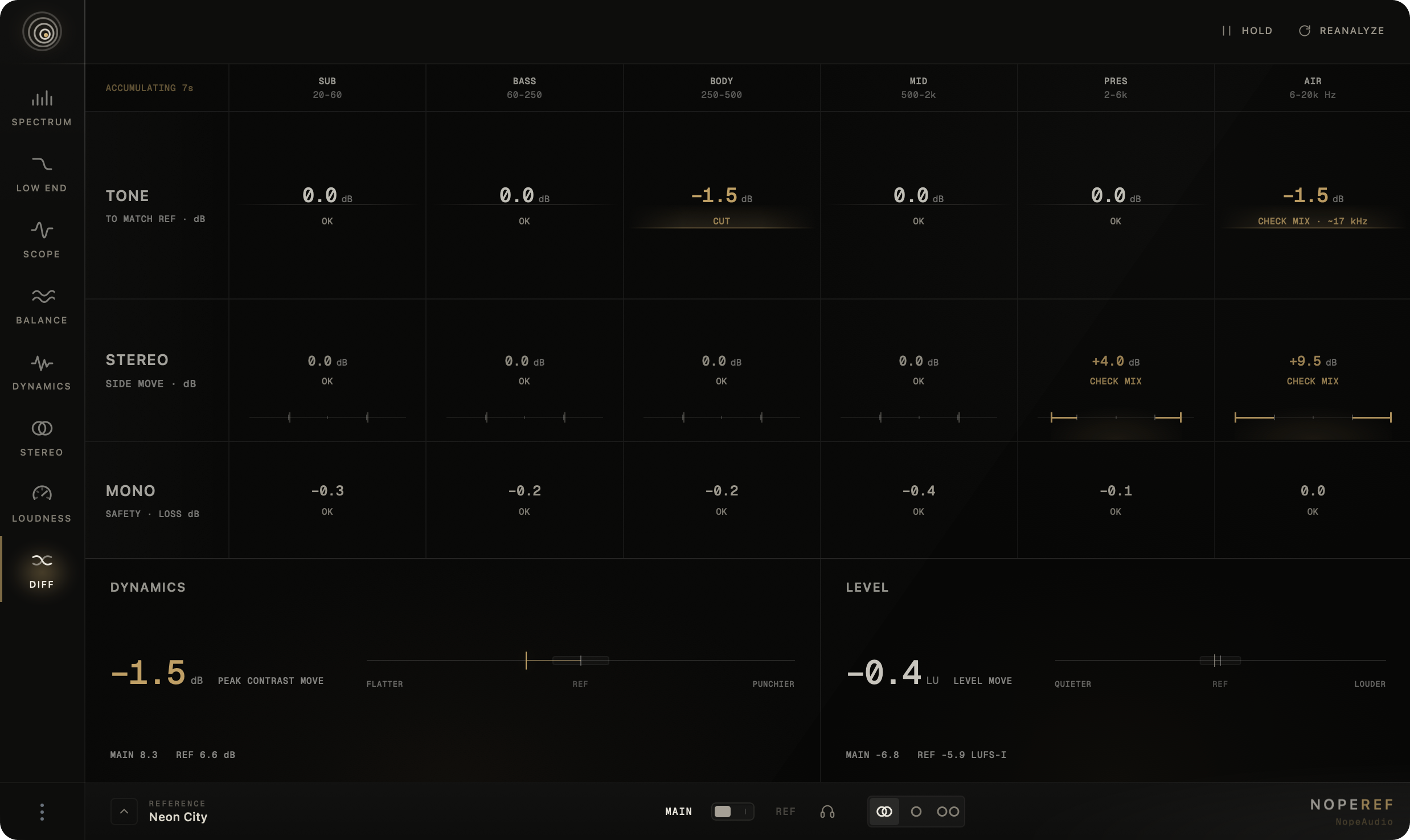
Diff turns a reference comparison into a focused map of differences that persist. At a glance it answers where the tonal balance differs, how side energy differs, whether Main loses level in mono, how its dynamic contrast differs and whether its overall level is higher or lower. It reports analysis, not automatic corrections, and never applies the displayed moves to the mix.
Select an analyzed reference section, start playback and allow at least five seconds for the initial Main measurement. Diff then continues accumulating the current run. Stopping playback pauses the run without clearing it. Hold freezes the result, Resume continues the same session and Reanalyze starts a new one.
Diff separates the result into four areas:
- Tone compares Main with the reference corridor in six bands: Sub (20–60 Hz), Bass (60–250 Hz), Body (250–500 Hz), Mid (500 Hz–2 kHz), Presence (2–6 kHz) and Air (6–20 kHz). It distinguishes broad differences, localized differences, mixed results and areas already inside the reference range.
- Stereo / Side describes the Side-to-Mid move needed to enter the reference corridor. Unsafe boosts can be withheld when sub energy, mono loss or insufficient Side content makes a simple width direction unreliable.
- Mono reports Main's own mono safety by band. It is an independent check, not a correction relative to the reference.
- Dynamics compares Peak Contrast with the reference profile. Level compares integrated loudness with a ±0.5 LU deadband.
Tone analysis accounts for an actionable Side difference before suggesting a tonal move, reducing the chance of counting the same difference twice. Mixed or unstable evidence is reported as something to inspect instead of being forced into a confident instruction.
Press a band to audition it momentarily, or lock the audition while you listen. Use Diff to prioritize investigation, then verify every result in context with the dedicated views and your ears.
Monitoring and audition
The shared and view-specific monitoring tools work together:
- A Main / B Ref chooses the monitored source.
- Stereo / Mono / Side chooses the shared monitoring fold.
- Spectrum, Balance, Scope, Low End, Stereo and Diff can audition a selected frequency or range.
- Lane controls in Spectrum can audition Left, Right, Mid or Side when those source modes are active.
Audition controls do not rewrite analyzer history, change Compare or alter saved reference analysis. If a reference is unavailable, monitoring falls back safely to Main.
Troubleshooting
The plug-in does not appear in the DAW
Confirm that the current 64-bit installer was used, reopen the DAW and run its plug-in rescan. On macOS, confirm that the DAW supports VST3 or Audio Units. On Windows, confirm VST3 support.
A Compare option shows no target
For SC, route a signal to NopeRef's sidechain input in the DAW. For Ref, add a reference file and select a section. Compare Off intentionally hides target traces and readouts.
Reference audio cannot be heard
Confirm that a reference file and section are selected, the DAW transport is running and the monitored source is B Ref. Selecting Compare: Ref alone does not change monitoring.
Match is unavailable
Play Main for at least four seconds and allow the selected reference section to finish its background analysis. Match remains unavailable until both integrated loudness measurements are valid.
The license cannot be activated
Check the internet connection, paste the complete personal key and confirm that an activation slot is available. If the three-device limit has been reached, deactivate one of your computers from inside the plug-in.
The trial reports a time-check error
Restore the computer clock to the correct date and time, then reopen the plug-in. The signed trial prevents the system clock from moving behind its last trusted time.
System requirements
| Platform | Requirement | Formats |
|---|---|---|
| macOS | macOS 11 or later; Apple Silicon or Intel | VST3, Audio Units |
| Windows | Windows 10 or 11, 64-bit; Intel or AMD | VST3 |
Minimum recommended display size: 1280 × 800. NopeRef works in hosts that correctly support the listed plug-in formats.
Support
If this guide does not resolve the problem, email support@nopeaudio.com.
Include the NopeRef version, operating system, DAW and DAW version, plug-in format, the steps that reproduce the issue and what you expected to happen. Never send your complete license key in a support message.